> ## Documentation Index
> Fetch the complete documentation index at: https://magicpatterns.mintlify.site/docs/llms.txt
> Use this file to discover all available pages before exploring further.
# Export to Figma
> Generate designs and then export them to Figma
### Steps
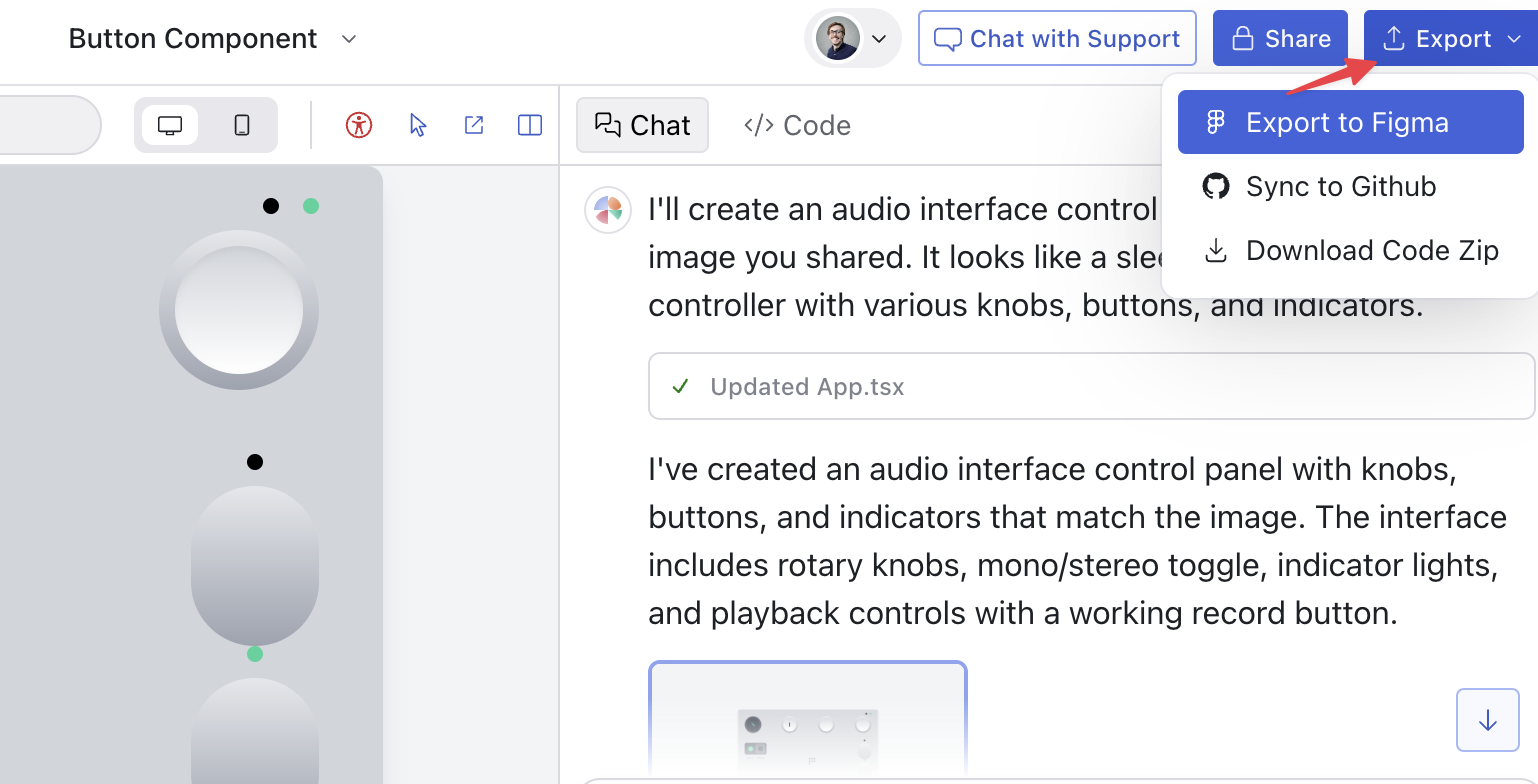
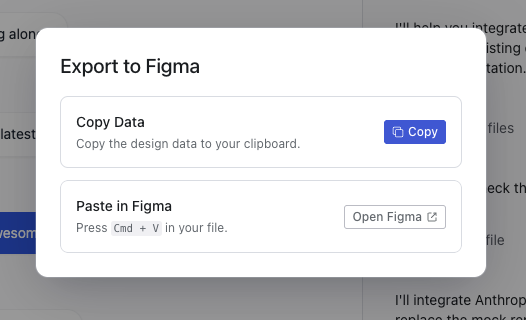
You can export your Magic Patterns design to Figma within seconds.
You can also use the hotkey "Option + F" to export to Figma.
## Exporting Tips
### Export a Design for Mobile
Magic Patterns designs are generally responsive by default. To export the mobile view to Figma:
1. First, switch to mobile view in Magic Patterns by clicking the device selector in the top bar and choosing **iPhone 17 / 17 Pro** (or your preferred mobile device)
2. Then export to Figma as normal by clicking "Export to Figma" in the menu
**Important:** Always set the view you want to export BEFORE exporting.
Whatever you see in Magic Patterns is what will be exported to Figma.
### Exporting Different States
Magic Patterns captures a static snapshot of what you currently see when you export to Figma. This means:
* For different screens: Navigate to the specific screen in your prototype first, then export
* For dropdown menus or modals: Open the menu/modal in Magic Patterns, then export
* For hover states or interactions: Trigger the state you want to capture, then export
* For responsive designs: Switch to the device size you want (mobile, tablet, desktop), then export
**Remember:** What you see is what you get. If you want to export a menu in
its open state, make sure it's open before clicking export.
### Exporting Multiple Designs into Figma
You can export multiple screens at once by using the canvas feature:
## Troubleshooting
### Why Designs Lose Interactivity in Figma
When you export from Magic Patterns to Figma, the design is converted into a static snapshot of the current code. Magic Patterns is powered by code, which allows for interactivity such as routing, hover states, and dynamic behavior. Figma, on the other hand, uses a visual data model based on vector graphics and layout primitives.
As a result, interactivity does not carry over. You’ll retain layout, styling, and structure, but the design will behave as a static series of “Figma layers” rather than an interactive interface.
### Output Is Not What You Expect
If you're struggling with the Figma export or the output doesn't match what you see in Magic Patterns, you can try using [html.to.design](https://www.figma.com/community/plugin/1159123024924461424/html-to-design) as an alternative. It's a Figma plugin that converts any webpage into Figma layers, and can sometimes produce better results depending on your use case.
Use the Publish button in the editor to get a live URL for your design. See
[Publish URL](/documentation/publishing/publish-url) for details.
## Video Guide
This topic is covered in our video lesson [Figma Imports](/documentation/guide/figma-imports).