

1
Create a MagicOS
Go to your dashboard, click Create, and choose MagicOS. A new MagicOS opens, and the coordinator says hello and asks how you want to start.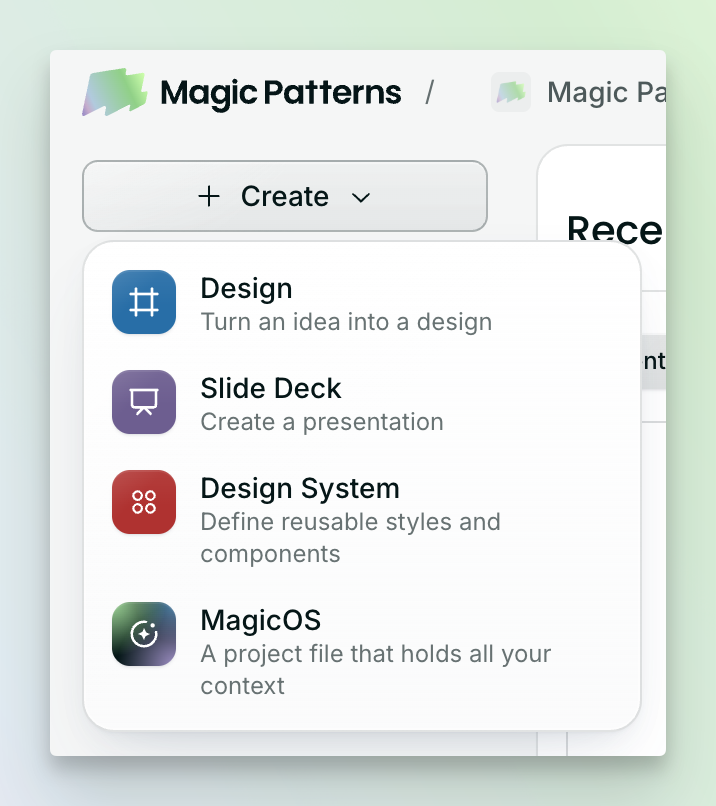
2
Choose a way in
Start fresh by typing or talking to the coordinator about what you want to build. Or bring in something you already have: use Insert in the navbar to add a design, document, image, or GitHub repo to the canvas.
3
Open the design
Whether the coordinator built it or you inserted it, your design sits on the canvas. Double-click it to open it up and click around.
4
Ask for a change
Tell the coordinator what you want the way you’d brief a teammate. For example: “Figure out a better layout for the home screen” or “Make it mobile-first.”
5
Watch the work
The coordinator starts a thread and hands the job to an agent. Follow along in that thread or from the sidebar. New files show up on the canvas as they’re built, and you can keep chatting with the coordinator in the meantime.
Next steps
The canvas and files
Add documents, images, GitHub repos, and notes next to your designs.
Agents and threads
Run several pieces of work at once and know when you’re needed.
Publish a design
Put a design from the canvas on a live URL.