

Custom Preview URLs require a paid plan. Upgrade
here.
How It Works
By default, you are assigned a random website address. But using the “Publish” button, you can assign a custom website address to your design. For example, if you choosemy-portfolio as your website address, your site will be live at project-my-portfolio.magicpatterns.app.
How to Publish
1
Open the Publish panel
Click the Publish button at the top of the editor.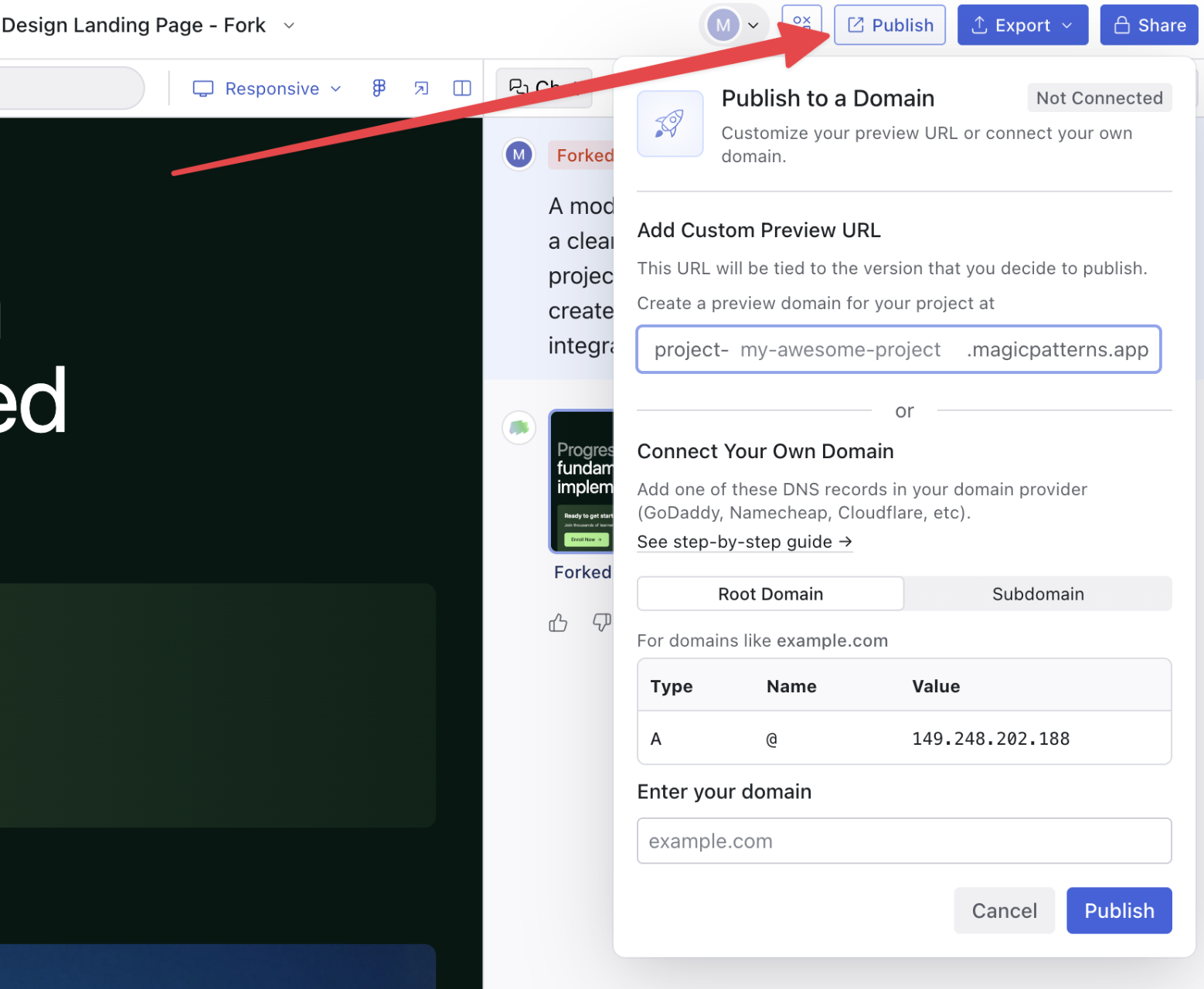
2
Enter your preferred website address (slug)
In the “Add Custom Preview URL” section, enter a name for your URL.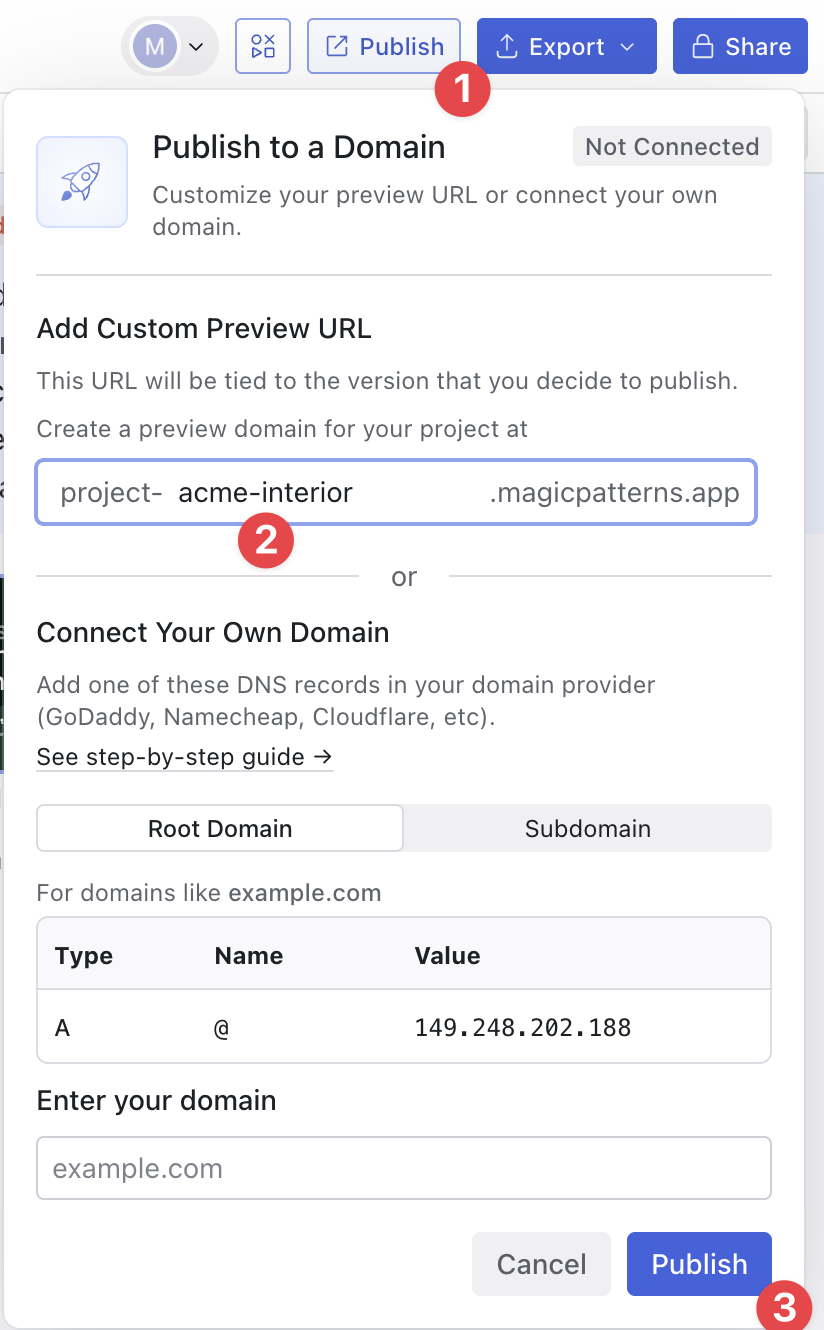
3
Click Publish
Your site will be live immediately at
project-yourname.magicpatterns.app.Changing Your Website Address
You can change your website address at any time by going back to the Publish panel and entering a new one. Note that your old URL will stop working once you change it.Changing Metadata
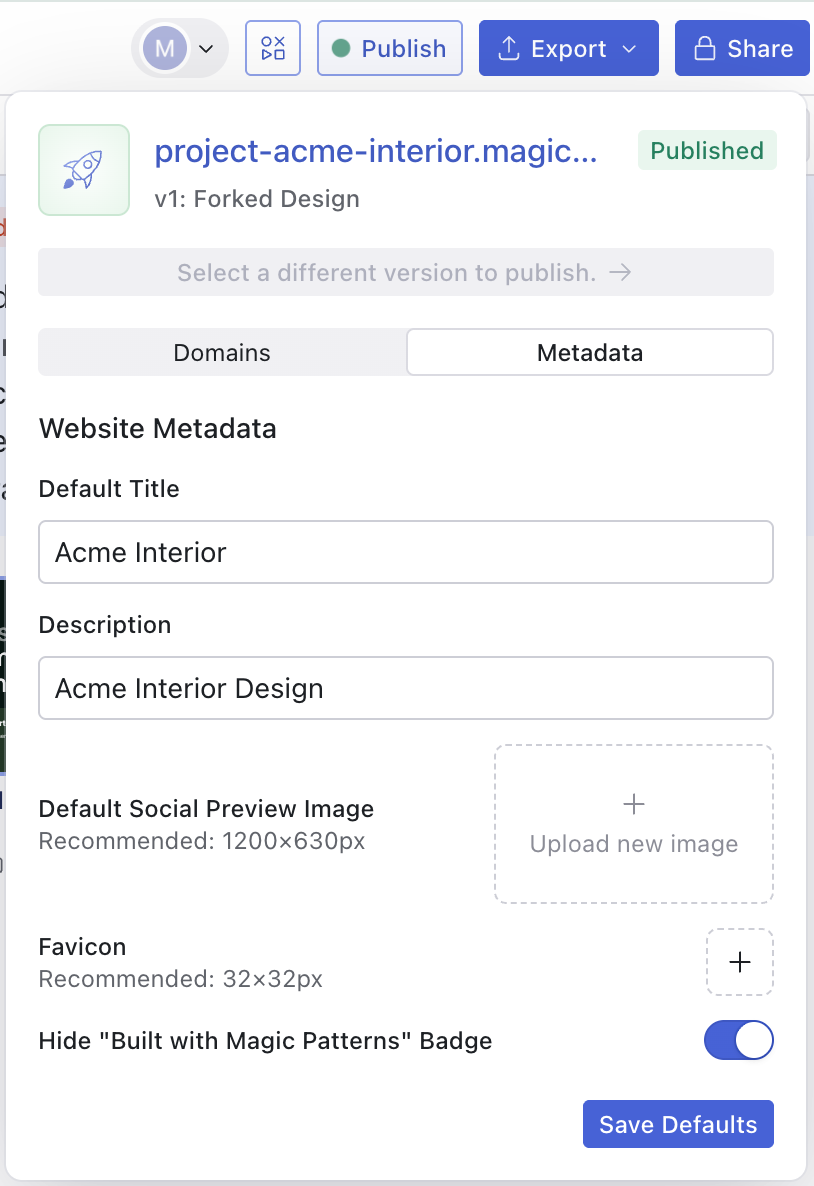
- Title — The name that appears in browser tabs and search results
- Description — A short summary shown in search results and social previews
- Preview image — The image shown when sharing on social media
- Favicon — The small icon shown in browser tabs
Next Steps
Ready to use your own domain not on*magicpatterns.app? See Host on a Custom Domain for instructions on connecting a domain you own.