

Looking to import a full Figma library? Book a
call and our team will help. We are working
towards making this self-serve!
Connect your Figma account
Before importing, connect your Figma account to Magic Patterns. This enables both copy-paste and URL-based imports, and lets us use the Figma MCP Server to extract richer design data for higher-quality imports.The Figma MCP Server is only available for
Dev and Full Figma accounts.
Free and Collab accounts will still work but may have less precise
imports.Import a .fig file
Uploading a.fig file is the fastest way to seed a whole Design System from Figma. Magic Patterns parses the file and extracts your colors (including color variables), typography, spacing/sizing tokens, and components (component sets and their variants) to build your import plan with no Figma account connection required.
1
Save a local copy of your Figma file
In Figma, open the file you want to import and choose File → Save local copy… to download a
.fig file to your computer.2
Link Figma as a Source
When creating a new Design System or updating your linked sources in the Settings, open Link Figma.
3
Drop in your .fig file
Drag the
.fig file onto the drop zone, or click to browse for it. Once it uploads, finish creating the Design System and we’ll extract your colors, typography, variables, and components into the import plan for you to review.Current limits: we read the file’s default variable mode (light/dark mode
themes aren’t split out yet), and embedded raster images aren’t imported.
Colors and components are ranked by usage and capped so the most-used tokens
come through first.
Import a component into your Design System
1
Open your Design System and create a component
Go into your Design System, open the Components page, and click Create Component. Choose the Import from Figma tab.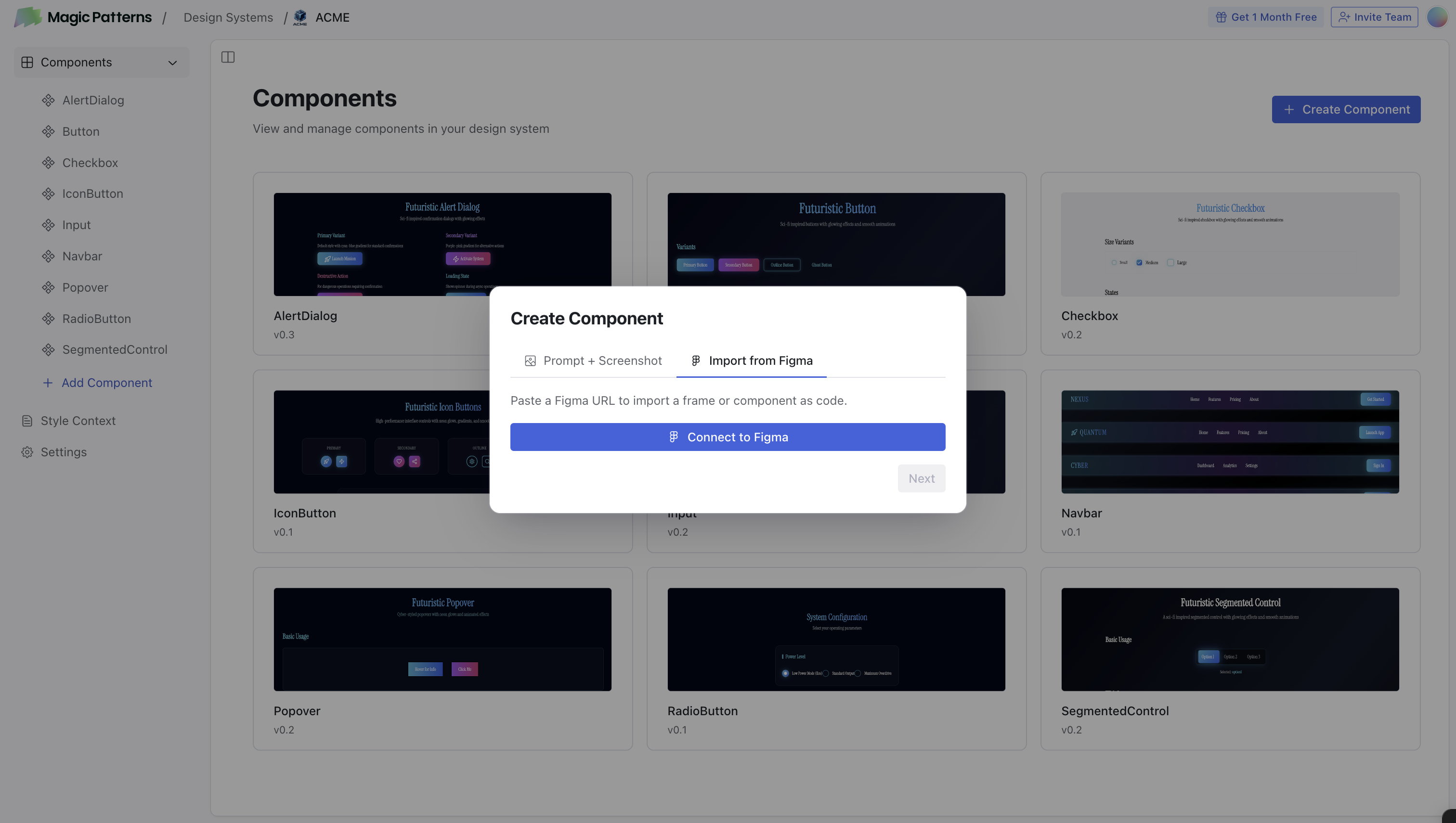
2
Copy the link to a frame in Figma
Select a frame or component in Figma, right click and choose Copy as → Copy link to selection (or press
CMD + L).3
Paste the link and import
Paste the link into the import dialog, confirm the preview looks right, choose your library, and click Import.
You can import one frame at a time. Import from Figma won’t always produce
a pixel-perfect frame, because every Magic Patterns design is code-first and
interactive, whereas Figma frames are not.
Learn more
Import from Figma
The full guide to importing designs and components from Figma, including
copy-paste and URL imports.