

1
Create a design
Go to your dashboard, click Create, and choose Design. A prompt box opens where your design starts.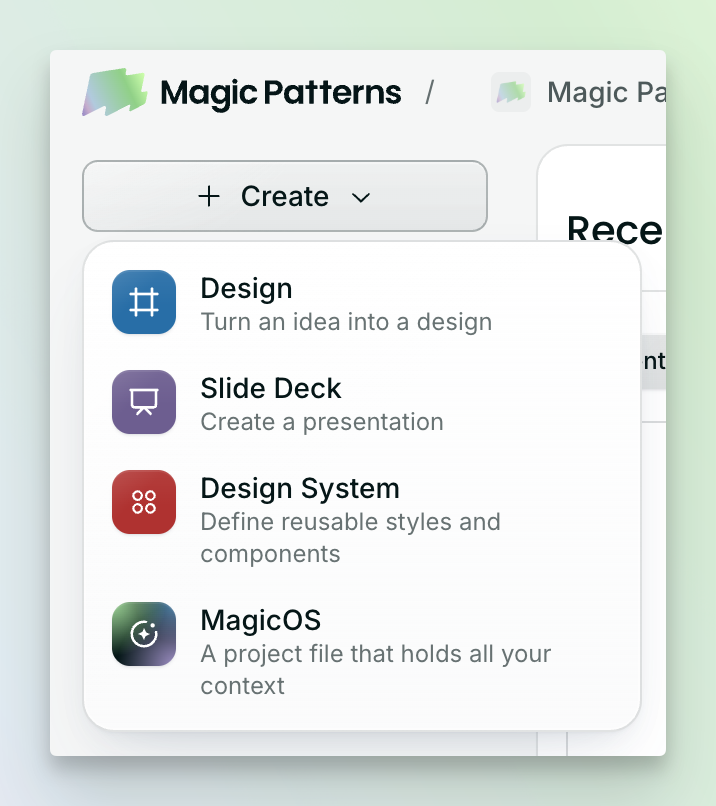
Have a screenshot of something close to what you want? Attach it to your prompt. The models are good at recreating designs from images, and it gives the AI a strong starting point.
2
Describe what you want
Write your prompt like you’d brief a designer: what it is, who it’s for, and the feel you’re after. For example: “A dashboard for a dog-walking business that shows today’s walks, earnings this week, and a map of routes. Friendly and clean.” Then submit.
3
Watch it build
The agent reports its progress in the chat as it works. When it finishes, your design opens in Preview.
4
Click through your design
The preview is a working website, so buttons, tabs, and forms respond. If the AI made more than one page, open the Screens tab to see them all side by side.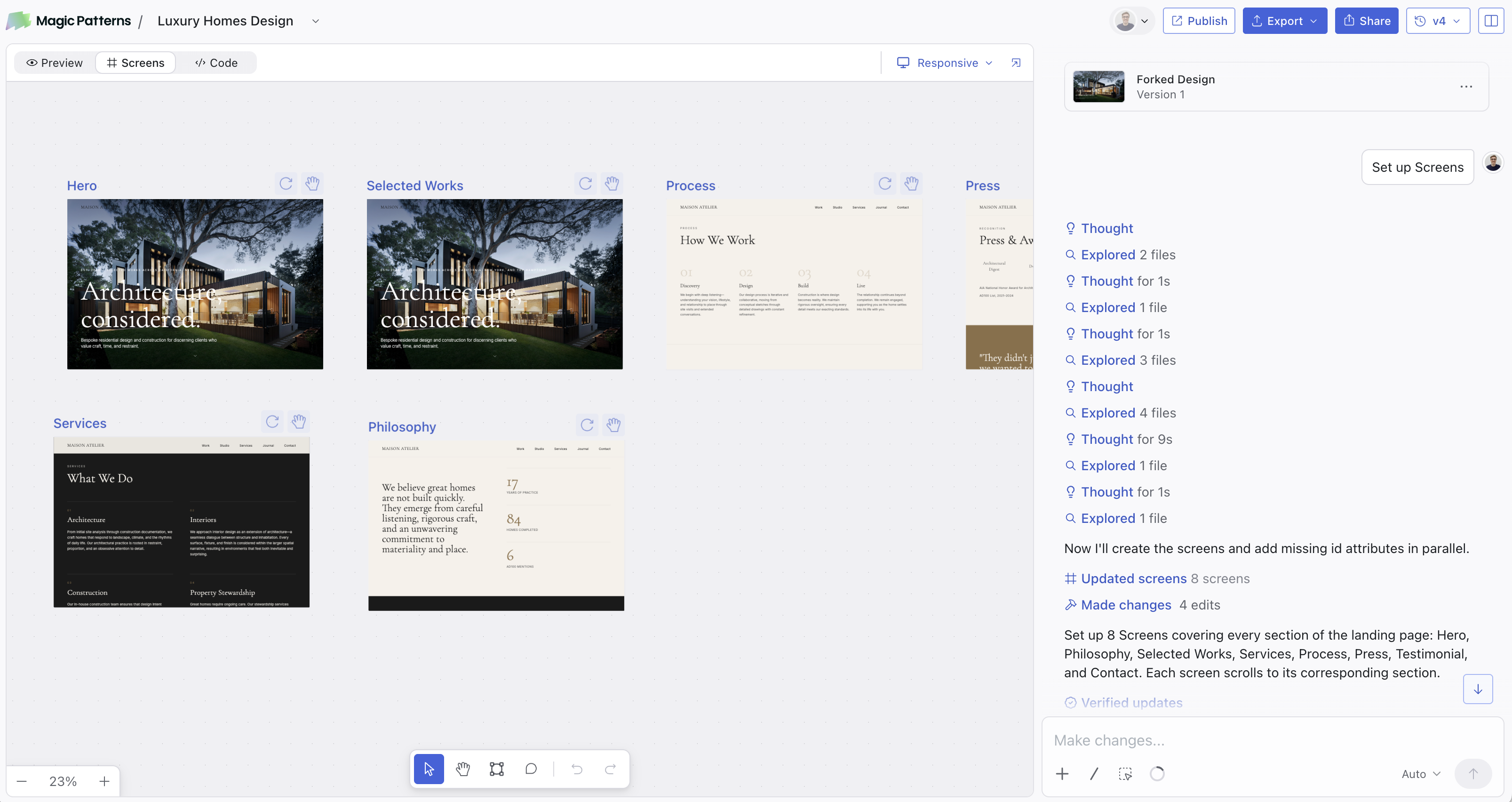
5
Explore and refine
Type
/Inspiration in the chat to get four variations of your design to compare. To change one specific thing, turn on Select Mode (⌥ + S), click the element, and describe the change. Every prompt saves a new version, so you can always go back.Next steps
How to Prompt
Get closer on the first try with Select Mode, chat modes, and skills.
Start from a template
Fork a design your team already saved instead of starting blank.
Publish your design
Share a live URL with your team or customers.