

Documentation Index
Fetch the complete documentation index at: https://magicpatterns.mintlify.dev/docs/llms.txt
Use this file to discover all available pages before exploring further.
What are Connectors?
Connectors let Magic Patterns work with your external tools, databases, and applications to give you more relevant responses. Powered by the Model Context Protocol (MCP), connectors allow the AI assistant to pull in real context from the services you already use — like meeting notes, project issues, or analytics data — and incorporate it directly into your designs. When a connector is enabled, the AI assistant can discover and call tools exposed by the connected service. For example, if you connect Granola, the assistant can pull your recent meeting notes and use them to inform a design.Available Connectors
Magic Patterns ships with built-in support for the following services:| Connector | Description |
|---|---|
| Granola | Pull meeting notes and context into your designs. |
| Notion | Pull pages, databases, and content from your Notion workspace. |
| Linear | Pull issues, projects, and roadmaps from Linear. |
| PostHog | Pull analytics, feature flags, and experiment data from PostHog. |
Getting Started with Connectors
This walkthrough uses Granola as an example, but the steps are the same for any built-in connector.Open the Connectors Menu
In the editor, open the prompt bar dropdown and select the Connectors section. You will see a list of available connectors you can connect.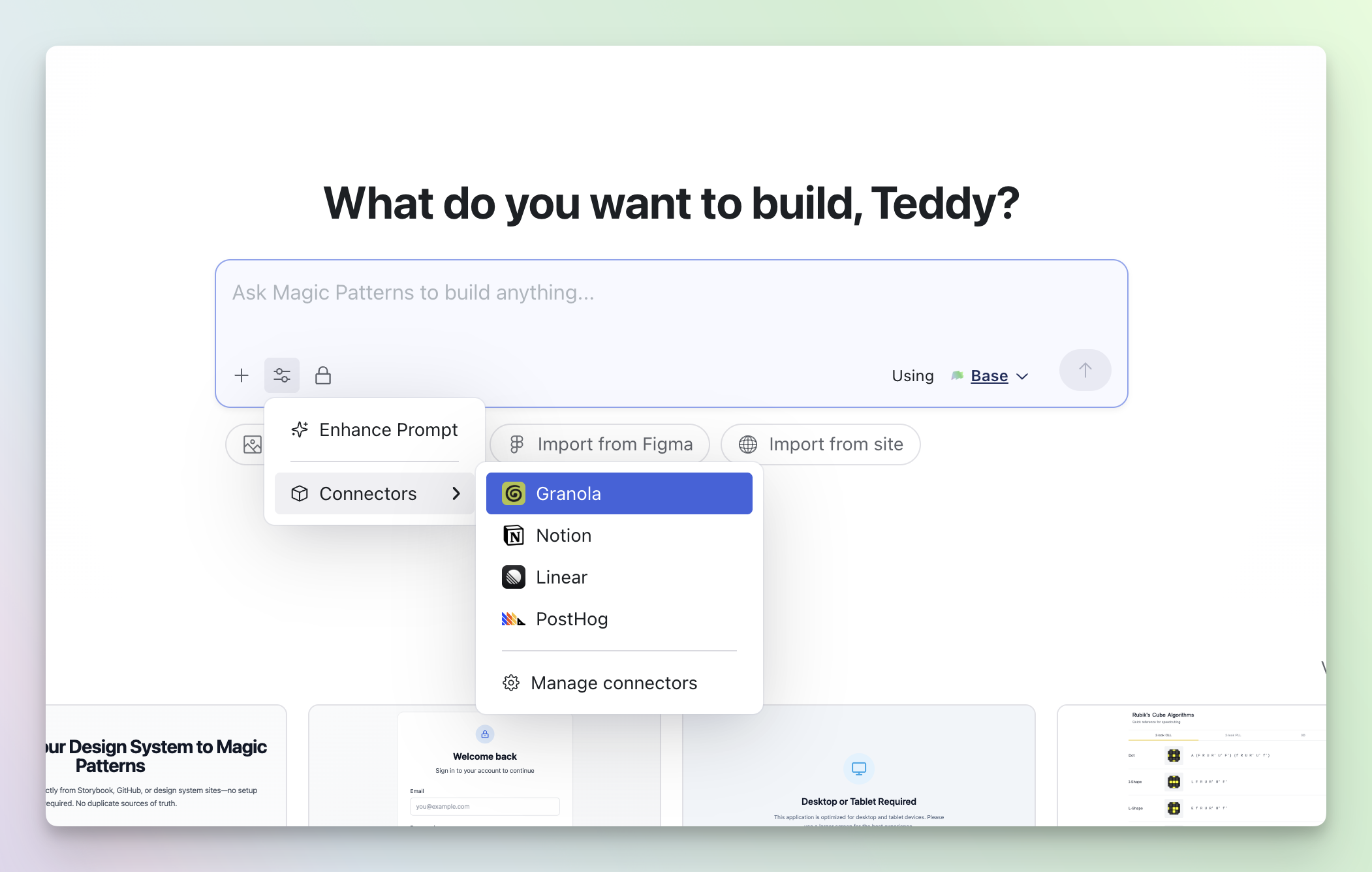
Connect a Service
Click the connector you want to enable (e.g. Granola). An OAuth dialog will appear.
Authorize Access
Click Connect with OAuth. A popup window will open asking you to sign in and authorize Magic Patterns to access your account. Once you approve, the popup will close and the connector will show as Connected.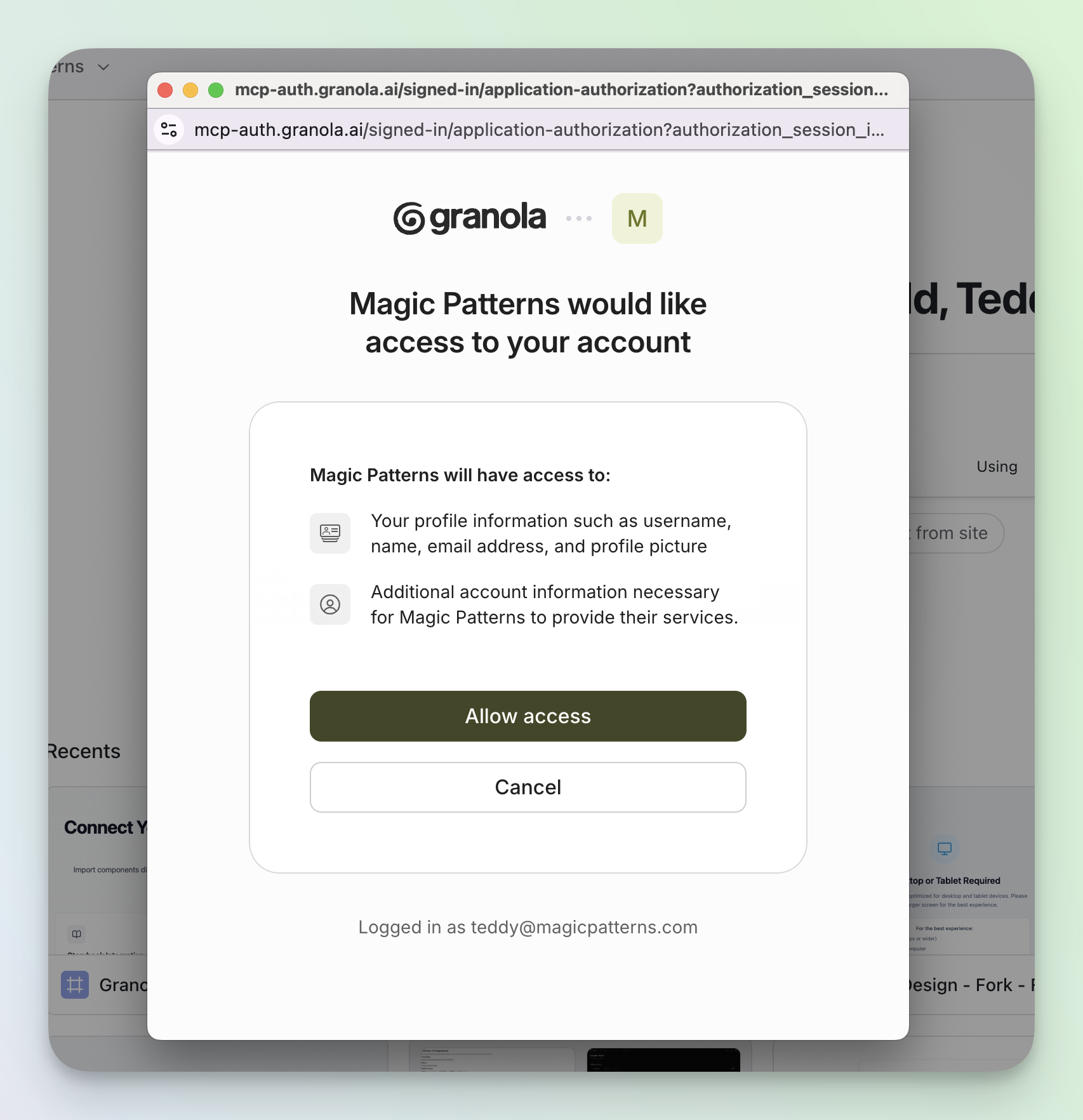
Use It in Your Prompts
Once connected, the AI assistant will automatically have access to the tools exposed by your connector. Just mention the data you need in your prompts and the assistant will pull it in:
- “Pull my latest meeting notes from Granola and design a summary dashboard”
- “What did we discuss in yesterday’s standup? Use that to create a task board”
Managing Connectors
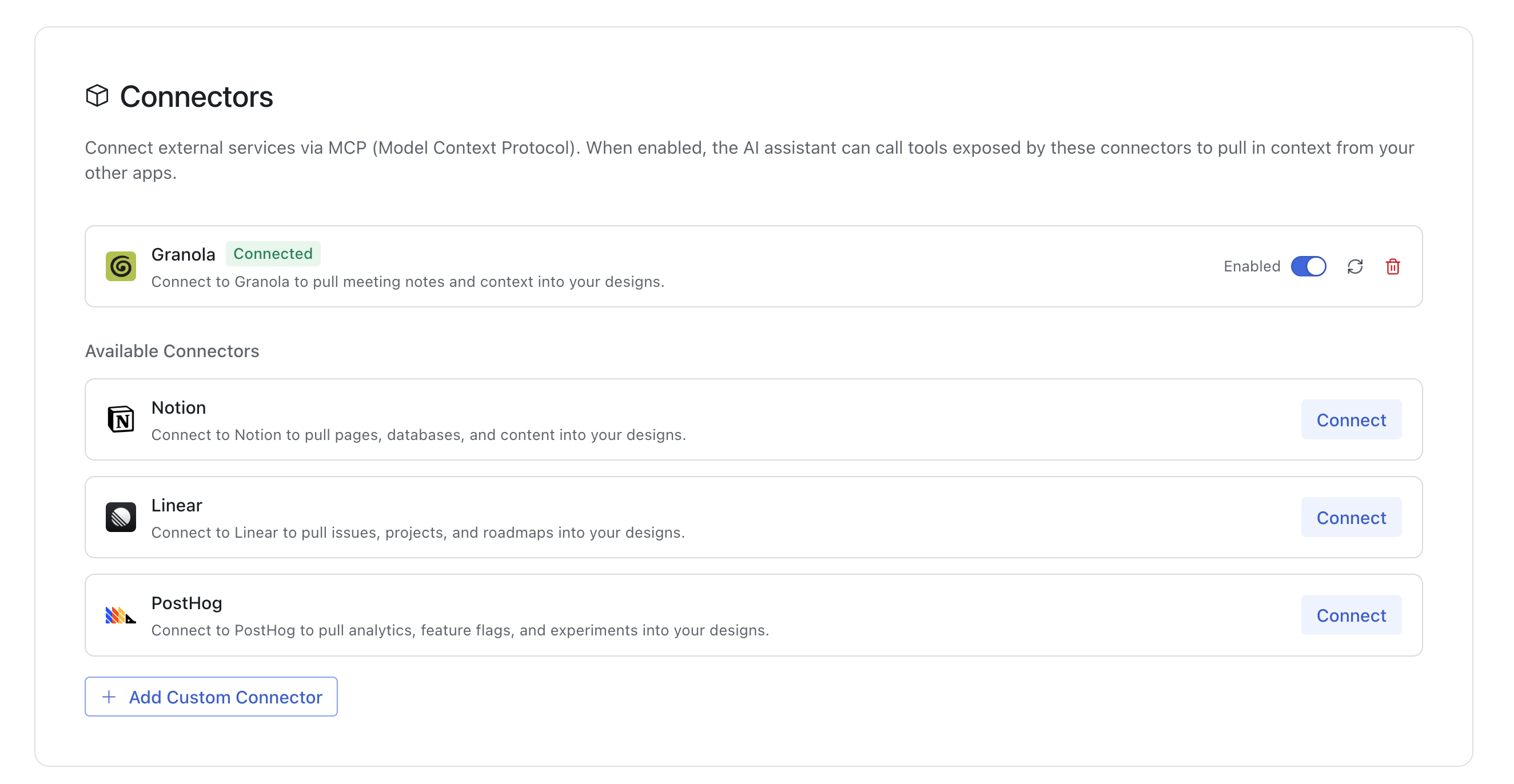
- Enable / Disable a connector using the toggle switch. Disabled connectors are not used by the AI assistant but remain connected.
- Re-authenticate a connector by clicking the refresh icon. This is useful if your access token has expired.
- Disconnect a connector by clicking the trash icon. This removes the connector and its stored credentials entirely.
Adding a Custom MCP Server
If your team runs a custom MCP server, you can connect it to Magic Patterns directly.Open Connector Settings
In the editor, open the prompt bar dropdown and select the Connectors
section. At the bottom, click Manage Connectors to open the Connectors
settings page.
Click Add Custom Connector
On the Connectors settings page, click the Add Custom Connector button at
the bottom of the list.
Enter Server Details
Provide a Name (how it will appear in the UI) and the MCP Server URL (for
example, https://mcp.yourcompany.com/mcp).
How It Works
Connectors use the Model Context Protocol (MCP), an open standard for connecting AI assistants to external data sources and tools.- When you connect a service, Magic Patterns performs OAuth 2.1 dynamic client registration with the MCP server’s authorization server.
- OAuth endpoints are discovered automatically via well-known metadata — no manual configuration needed.
- When the AI assistant needs data from a connector, it calls the MCP server’s tools using the stored access token.
- Tool results are returned to the assistant and incorporated into its response. You can expand any connector tool call in the chat to see the raw result.