

Type what you want to make
Start with three things:- What it is: a pricing page, a mobile onboarding flow, a set of social posts.
- Who it’s for: new customers, your internal team, first-time users.
- What it needs: the key content, sections, or actions.
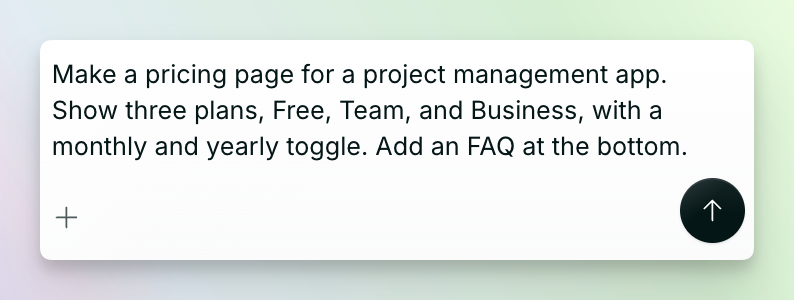
Make a pricing page for a project management app. Show three plans, Free, Team, and Business, with a monthly and yearly toggle. Add an FAQ at the bottom.You don’t need to get it perfect. Start simple, then add detail as you go.
Ask for a prototype or a frame
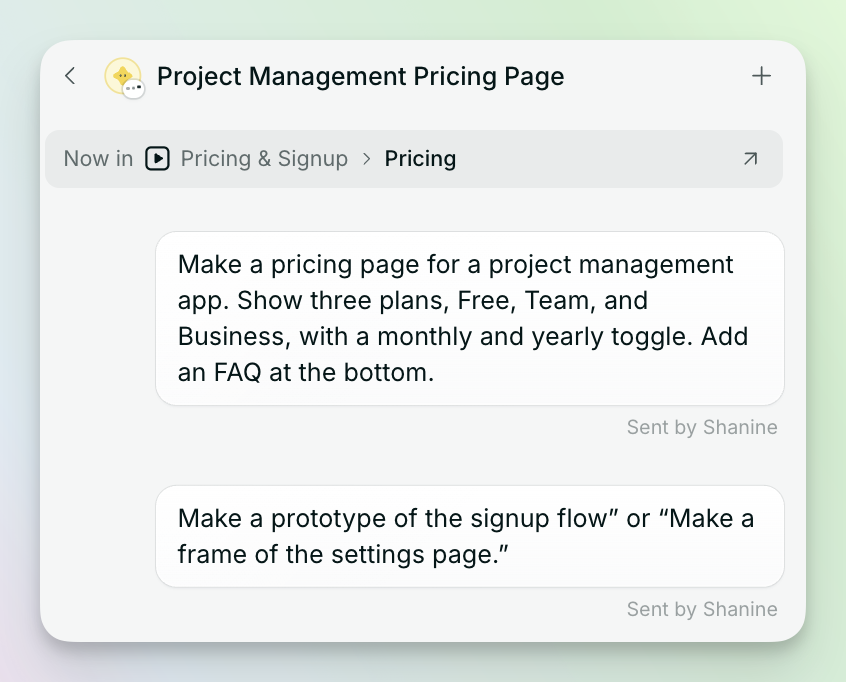
Tell the agent which kind of file you want:- Prototype: an interactive app you can click through. Use it for flows, like signing up or checking out.
- Frame: a single screen. Use it for one page or a quick visual idea.
Give the agent context
The agent can see and change the same files you see. The more of your work it can see, the more the result will look like your product.- Upload files: use Insert or + to add screenshots, documents like a PRD, or a PDF for the agent to read.
- Add your design system: so every design uses your components and styles.
- Connect a GitHub repo: so the agent builds from your real code.
- Paste a public link: the agent will bring it in.
- Mention a file: type @ in your message to point the agent to a file that’s already in your MagicOS.
- Select files: select files on the canvas and add them to the chat.
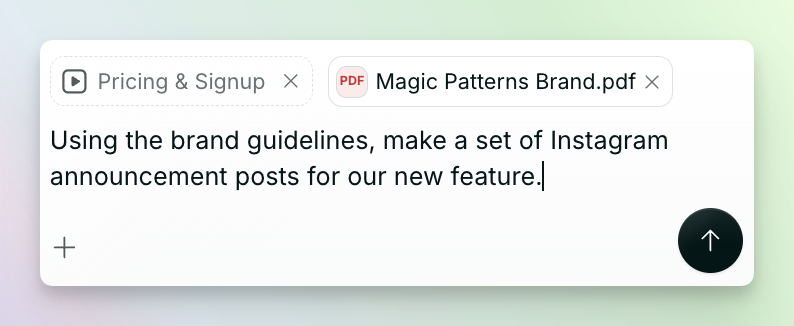
Using @Brand guidelines and the screenshots I uploaded, make a set of Instagram announcement posts for our new feature.
Point to exactly what you want changed
Instead of describing where something is, show the agent.- Double-click a prototype or frame to open it.
- Switch to Inspect.
- Select the part you want to change, like a button or a heading.
- Type the change you want, or add that part to your prompt.
Explore a few options
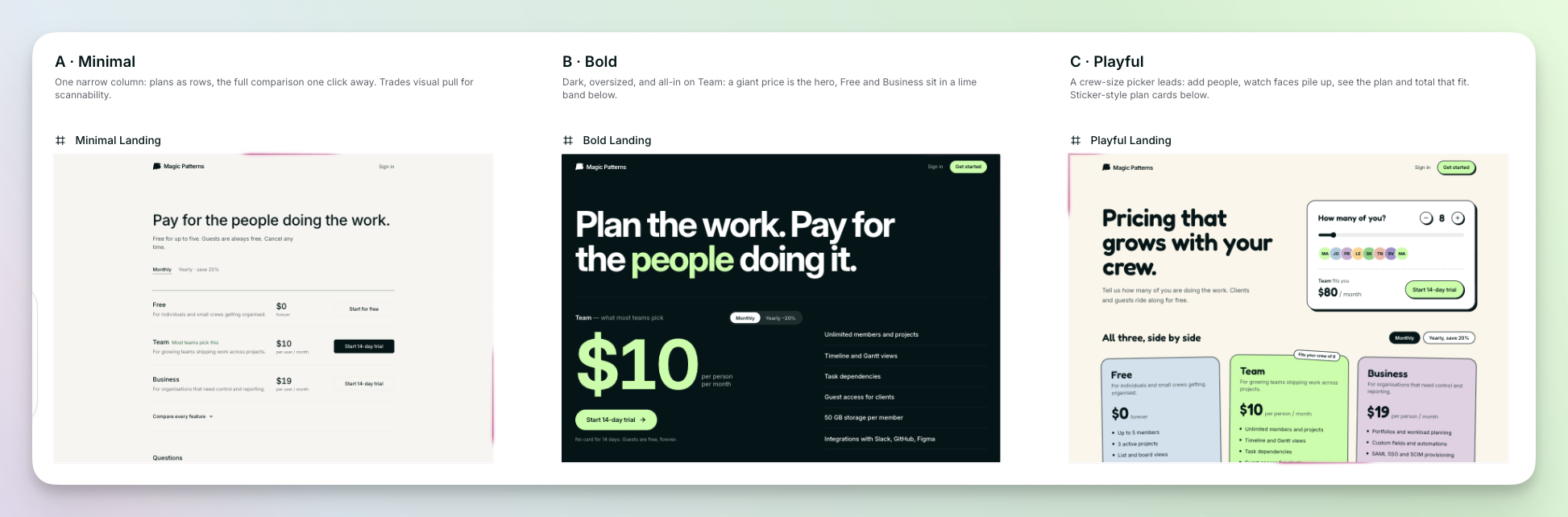
You don’t have to pick one direction first. Ask for several, and the agent lays them out on a canvas so you can compare them side by side.Give me three directions for this landing page: one minimal, one bold, and one playful.Then pick the one you like and keep going: “Let’s go with the bold one. Make the headline shorter.”
Use chats to work on several things at once
Each piece of work runs in its own chat, which you’ll find on the right. You can start a new chat for each task, like one for the homepage and one for the onboarding flow, and the agent can work on them at the same time.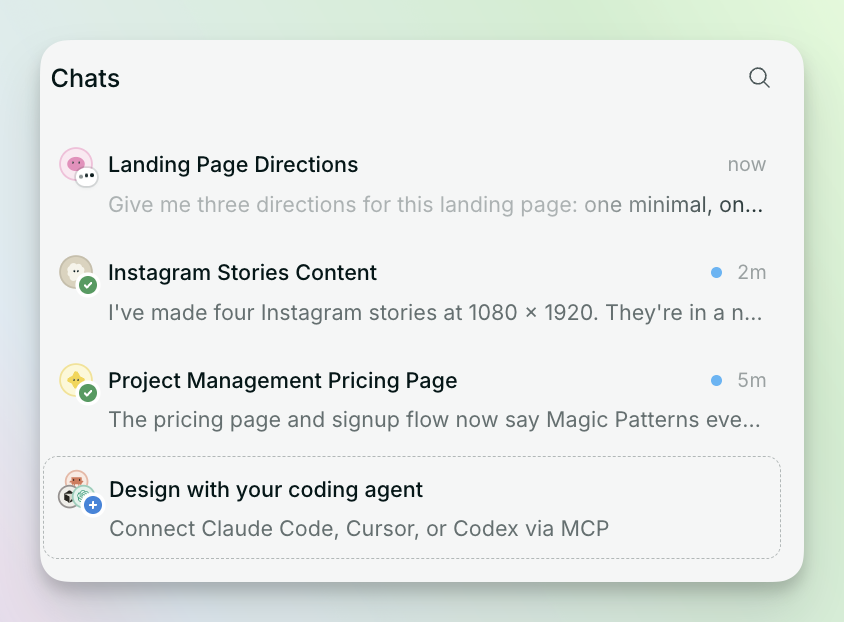
- Keep each chat to one task, so it stays focused.
- Search your chats to find earlier work.
- Archive chats you’re not using.
Change one thing at a time
After the first result, make changes in small steps rather than asking for everything at once. This makes it easier to see what changed and to go back if you don’t like it. Instead of: “Change the colors, add a testimonials section, make it mobile friendly, and rewrite the copy.” Try: “Add a testimonials section below the pricing plans.” Then, once that’s done: “Now make it work on mobile.”Quick tips
- Be specific: “Make the button bigger and green” works better than “Make it pop.”
- Name things: refer to sections, screens, and files by name, or use @.
- Show, don’t describe: a screenshot or reference image often says more than a paragraph.
- Tell the agent what to keep: “Keep the layout, just change the colors” stops it changing things you like.
- Start from a template: Prompt templates give you a ready-made starting point.
Next steps
The canvas and files
Add canvases, prototypes, frames, documents, images, and resources.
Prototypes and frames
Open a prototype or a frame to interact, inspect, or edit.
Agents and threads
Run several pieces of work at once and know when you’re needed.