

MCP integration requires a paid plan. Upgrade
here.
Connection Options
Official Claude Connector
One-click install from the Claude directory
Official Cursor Plugin
One-click install from the Cursor Marketplace
Official Codex Plugin
One-click install from the ChatGPT and Codex plugin directory
Custom MCP Setup
Configure in Cursor, Claude Code, Codex, or other MCP clients
API Key Authentication
Authenticate with an API key instead of OAuth
Official Claude Connector
Magic Patterns is available as an official Connector in the Claude directory. This is the easiest way to get started in Claude and Claude Code — no configuration required.1
Open the Claude directory listing
Go to claude.ai/directory/magic-patterns and click to add it. You can also find it from Claude’s Connectors icon or your integrations settings.
2
Find Magic Patterns
Search for “Magic Patterns” in the available connectors and click to connect.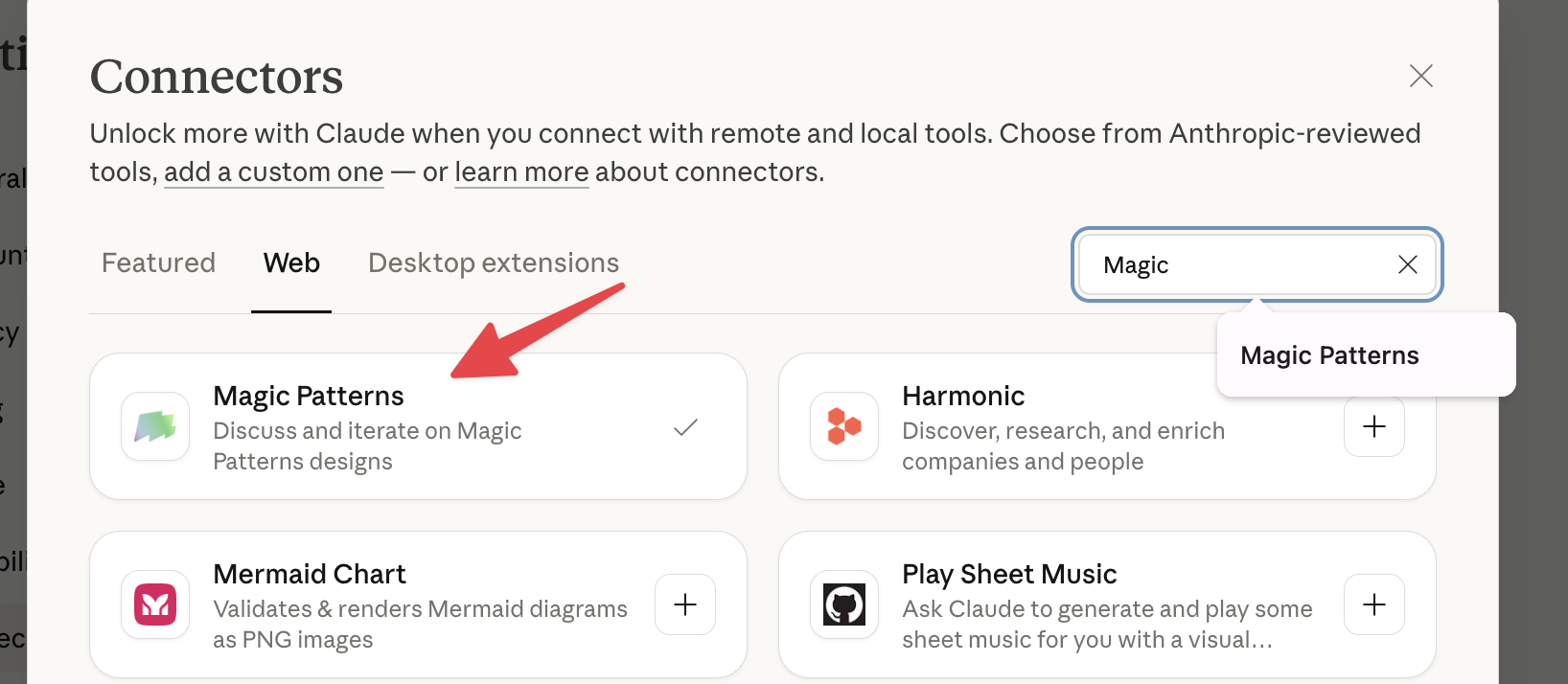
3
Authorize and start using
Complete the authorization flow, and you’re ready to use Magic Patterns directly in Claude conversations.
Official Cursor Plugin
Magic Patterns is available as an official plugin in the Cursor Marketplace. This is the easiest way to use Magic Patterns from Cursor. Installing the plugin wires up the MCP server for you and bundles a set of skills that teach the agent Magic Patterns workflows.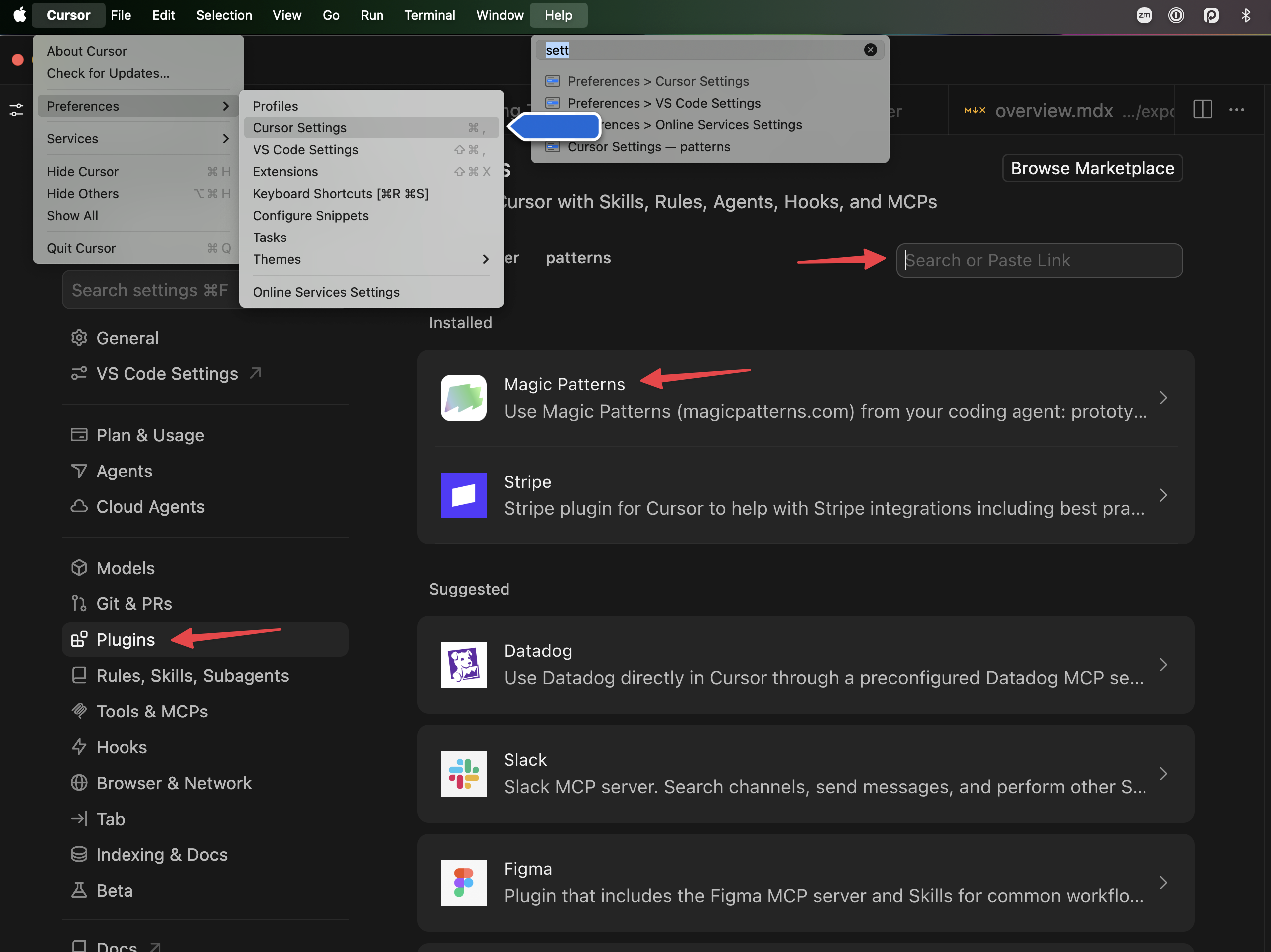
1
Open the Cursor Marketplace
In Cursor, go to Settings → Plugins (or open the Marketplace) and search for Magic Patterns.
2
Install the plugin
Click Install. The plugin registers the Magic Patterns MCP server automatically and adds the Magic Patterns skills.
3
Authenticate and start building
Complete the OAuth flow to connect your Magic Patterns account, then prompt Cursor to prototype, generate inspiration with “/inspiration”, upload local UI, or integrate a design.
Official Codex Plugin
Magic Patterns is available as an official plugin in the ChatGPT and Codex plugin directory. This is the recommended way to use Magic Patterns from Codex — no API key or custom MCP configuration required. Installing the plugin connects the Magic Patterns tools and bundles the same skills as the Cursor plugin.1
Open the plugin directory
In the ChatGPT desktop app or Codex, open Plugins and search for Magic Patterns. In the Codex CLI, run
/plugins to open the plugin browser.You can also open the listing directly: Magic Patterns in the plugin directory.2
Install the plugin
Select Install plugin. Complete the connection flow to link your Magic Patterns account when prompted.
3
Start a new session and build
Start a new Codex session so the plugin’s skills and tools load, then prompt Codex to prototype, generate inspiration with “/inspiration”, upload local UI, or integrate a design:
Custom MCP Setup
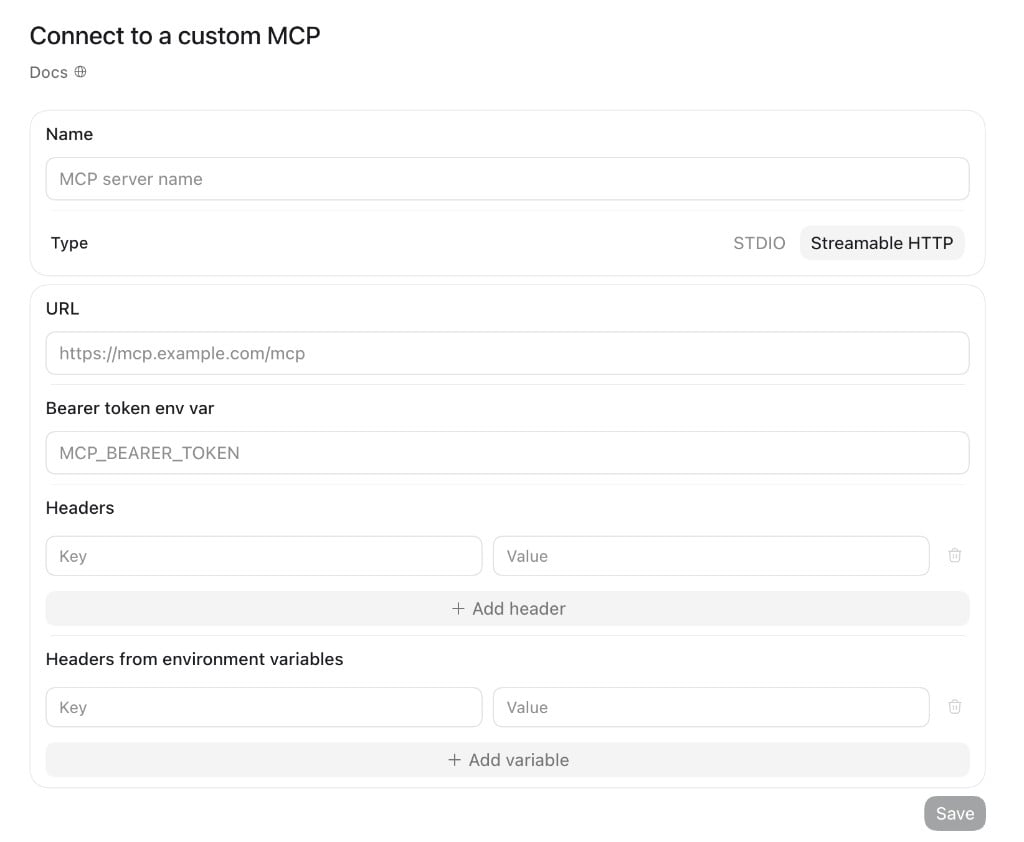
For tools like Cursor, Claude Code, or Codex, you can configure the Magic Patterns MCP server manually. If you’re on Cursor or Codex, prefer the official plugins above — this section is for other MCP clients or for pinning a specific configuration.- Cursor
- Claude Code
- Codex
1
Add to your MCP config
Create a
.cursor/mcp.json in your project for project-specific tools. Cursor instructions here.2
Verify MCP is enabled
IMPORTANT: If Cursor browses the web instead of using the MCP tools, it means it’s not working!Ensure the MCP is actually turned on and not globally ignored. You can check this in Cursor’s settings. Check “magic-patterns” to on!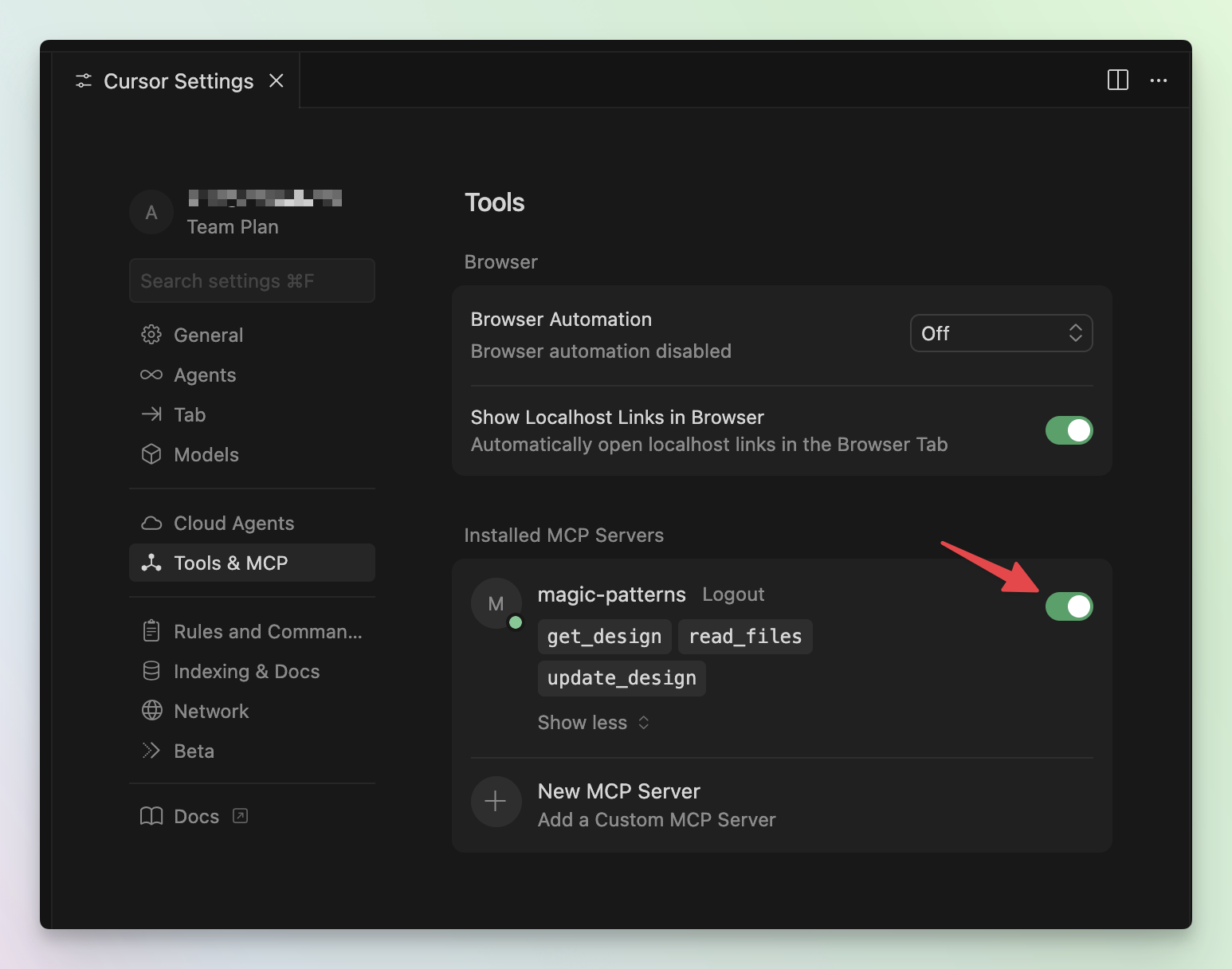
3
Reference your designs
Once connected, you can prompt Cursor to access a specific design. For example:
Cursor Troubleshooting
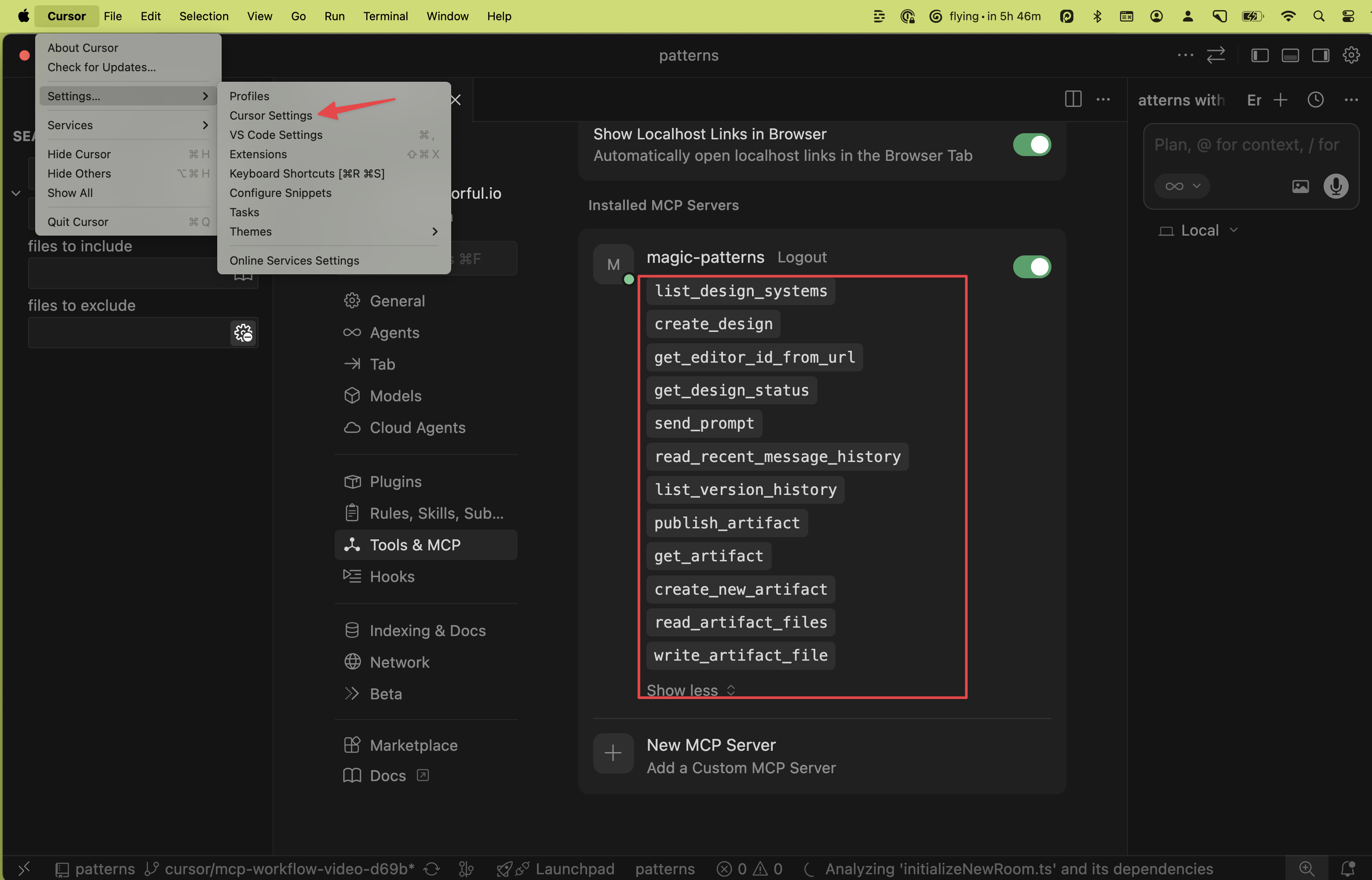
Read-only mode
If you want to expose Magic Patterns to an AI client without granting permission to create, modify, or publish designs, point the client at the read-only endpointhttps://mcp.magicpatterns.com/mcp/readonly instead of https://mcp.magicpatterns.com/mcp. The same OAuth flow and API keys work against both URLs.
Only the following tools are exposed on the read-only endpoint:
list_design_systemsget_editor_id_from_urlget_inspiration_documentget_design_statusread_recent_message_historylist_version_historyget_artifactread_artifact_filesget_design_systemread_design_system_filessend_feedback_to_magic_patterns_team
create_design, create_slide_deck, send_prompt, create_new_artifact, write_artifact_files, publish_artifact, create_design_system, write_design_system_files, publish_design_system, create_inspiration_document, inspiration_add_variant, inspiration_update_variant, inspiration_clear_variants) are not registered on this endpoint, so the client cannot list or call them.
- Cursor
- Claude Code
- Codex
API Key Authentication
If you prefer not to use OAuth, you can authenticate the MCP server with a Magic Patterns API key. This is useful for headless environments, CI, or any client where the interactive OAuth flow is impractical. The same API key also works for the v3 REST API and the legacy v2 API.1
Create an API key
Open Settings → API Keys and click Create Key. Copy the key immediately — you can only see it once.
2
Pass the key as a Bearer token
Configure the MCP server exactly as in Custom MCP Setup, but add an
Authorization: Bearer <your-api-key> header. When a key is present, the OAuth flow is skipped entirely.- Cursor
- Claude Code
- Codex
3
(Optional) Identify your agent
Pass the
x-mp-agent-name header to tag requests with your agent or integration name. This is optional but helps with attribution in the Magic Patterns UI.Authorization: Bearer or x-mp-api-key header:
API key authentication requires a paid plan. Usage is billed against your account’s normal credits, the same as OAuth and the web app.
Next Steps
Tools & Workflows
Explore the available MCP tools and learn common workflows for
design-to-code and code-to-design.
Integration Skill
A drop-in skill that teaches your AI editor to adapt a Magic Patterns
design into your codebase the right way.