

Install the extension
1
Add the extension.
Open the Magic Patterns extension in the Chrome Web Store and add it to your browser.
2
Pin it.
Open the puzzle-piece menu in your browser’s toolbar and pin Magic Patterns so it’s one click away.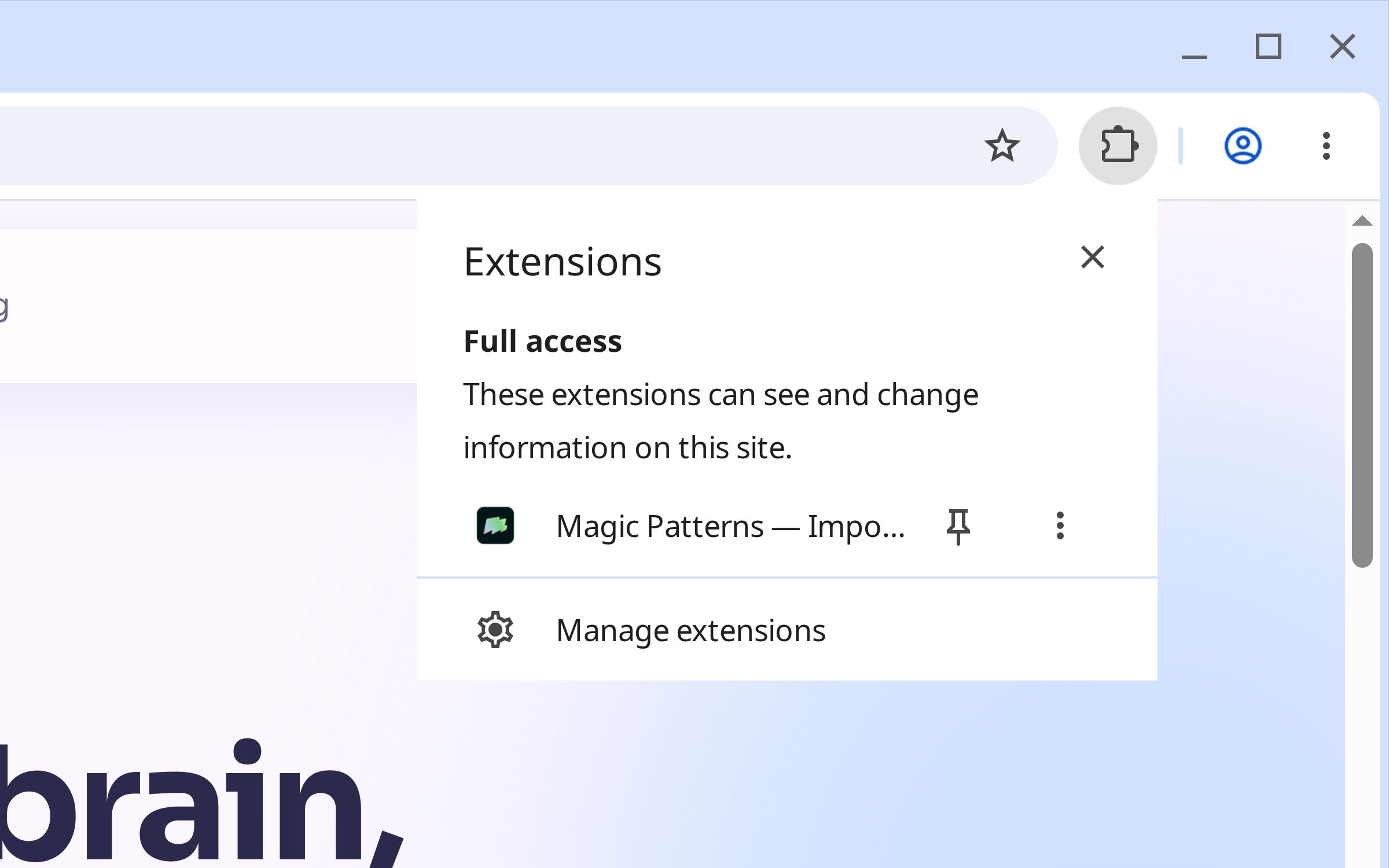
Copy a page
Sign in to Magic Patterns in the same browser first. If you aren’t signed in, the extension asks you to.1
Open the page you want to copy.
It can be a page you’re signed in to. The extension copies what you see.
2
Click the extension, then click Copy page.
The extension captures the page, collects its images and fonts, and uploads it. Keep the popup open until it says Copied.
3
Paste it into a project.
Open any MagicOS project you can edit, click an empty spot on the canvas, and press ⌘V (Ctrl+V on Windows). The page comes in as a new frame.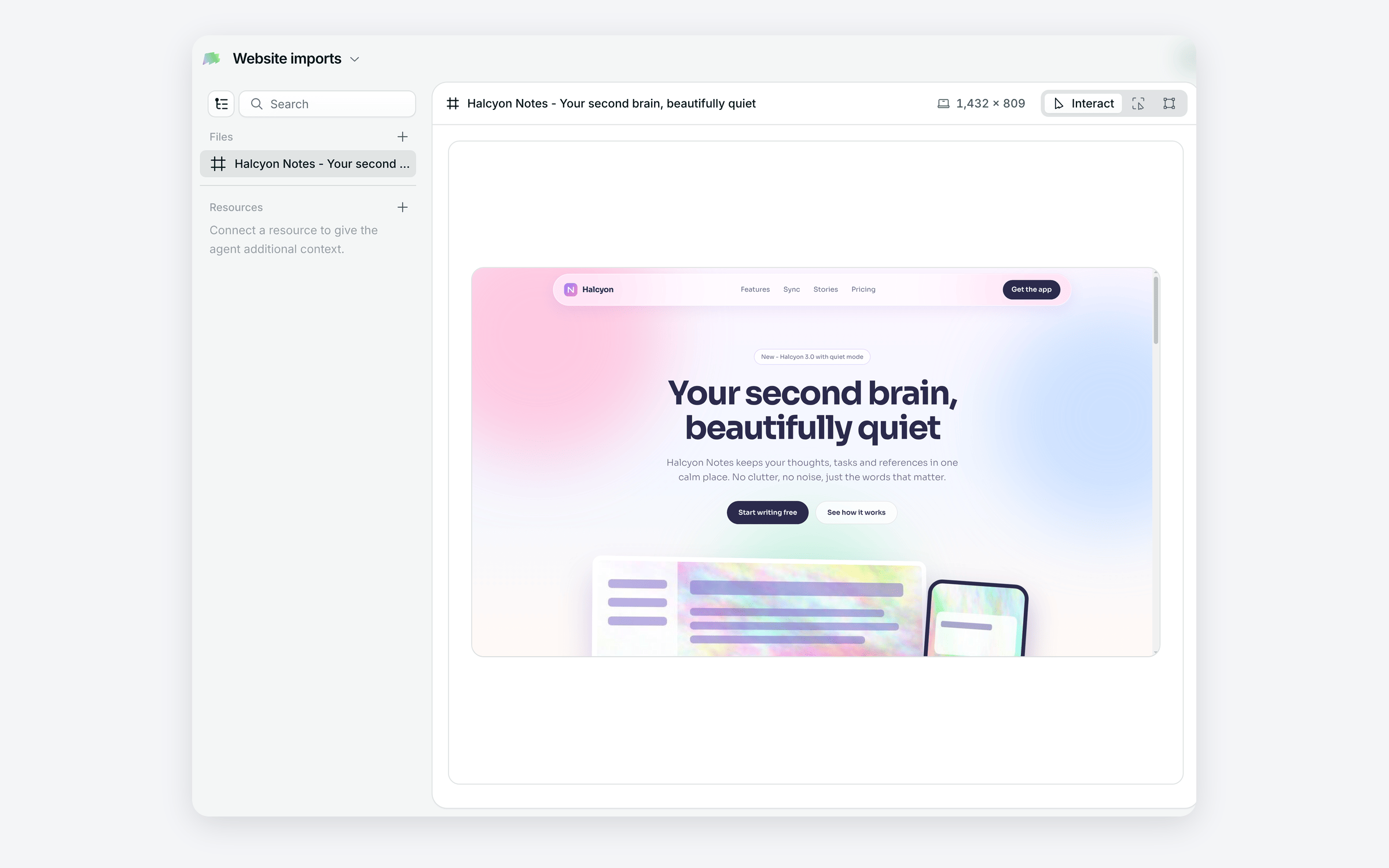
After you paste
The page is a frame like any other. Open it to click through it, inspect an element to ask for a change, or edit it by hand. Select it and add it to the chat to have the agent restyle it or build from it. See The canvas and files.Troubleshooting
- Pressing ⌘V does nothing. Click an empty spot on the canvas, then paste again. A paste into the chat box or another text field goes there instead.
- The popup says the page is ready, but it isn’t on your clipboard. This happens when the popup closed before the copy finished. Click Copy again, then paste.
- Copy and paste from website asks you to install or update the extension. Install or update it from the Chrome Web Store, then reload the tab.
- “That page was copied with a newer version of the extension.” Refresh the project and paste again.