

Where your design system is
A design system is a resource, not a file on the canvas, and it belongs to your workspace rather than to one project. You import it once, then add it to the projects that should build with it. To add one to the project you have open, click the + next to Resources in the left sidebar, then pick it in Add Resources. Design systems shared with your workspace are grouped under the workspace’s name, and anything you connected yourself is under Yours. If the list is long, search it by name or filter it by kind.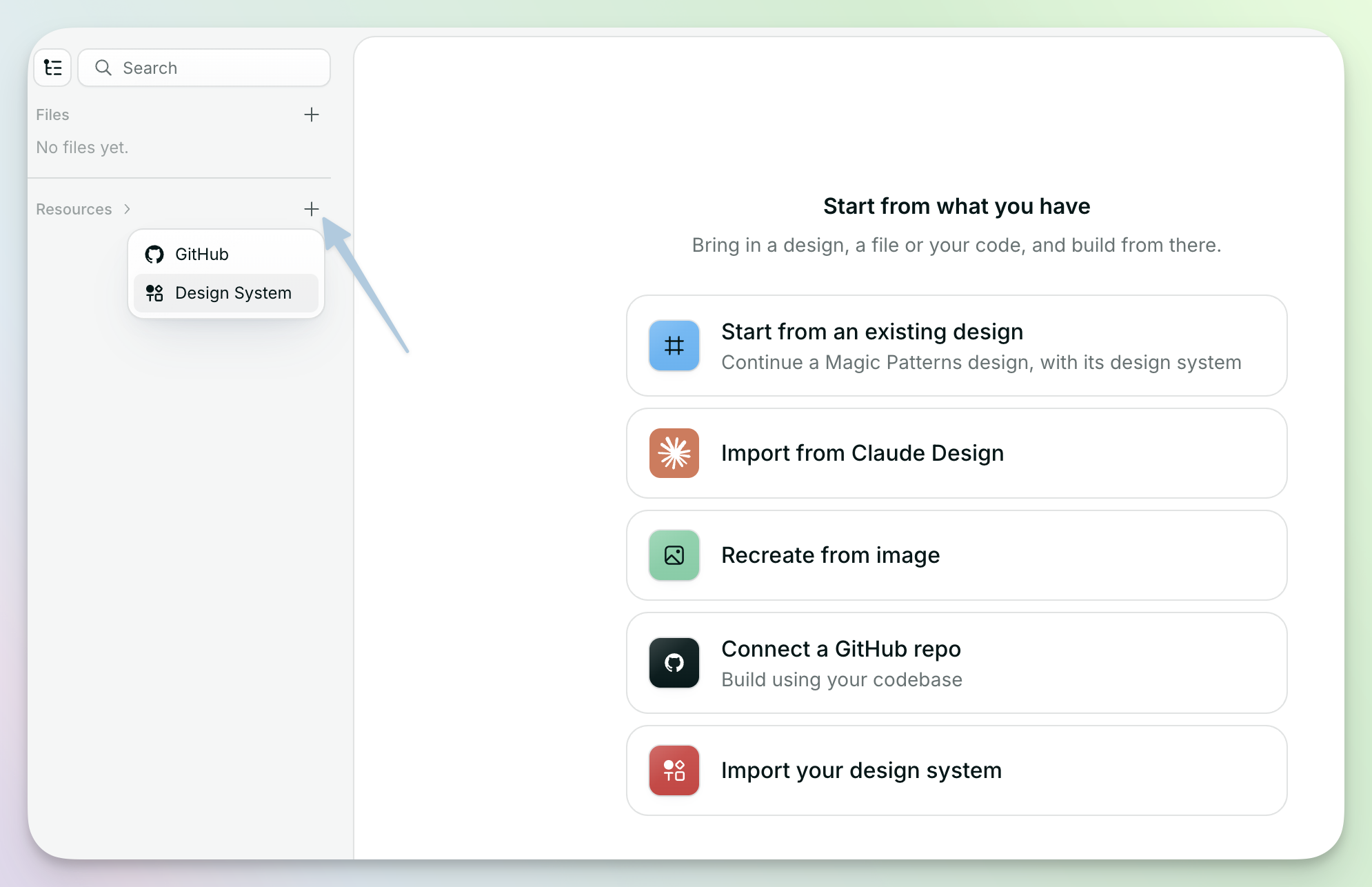 If a design system you expect isn’t there, check which workspace you’re in. Each workspace lists its own resources, and the switcher is at the top left.
Start every project with the same resources
Default resources save you adding the same design system to every new project. On the dashboard, the New Project card has a Resources button. It says what your next project will start with, and opens Default Resources.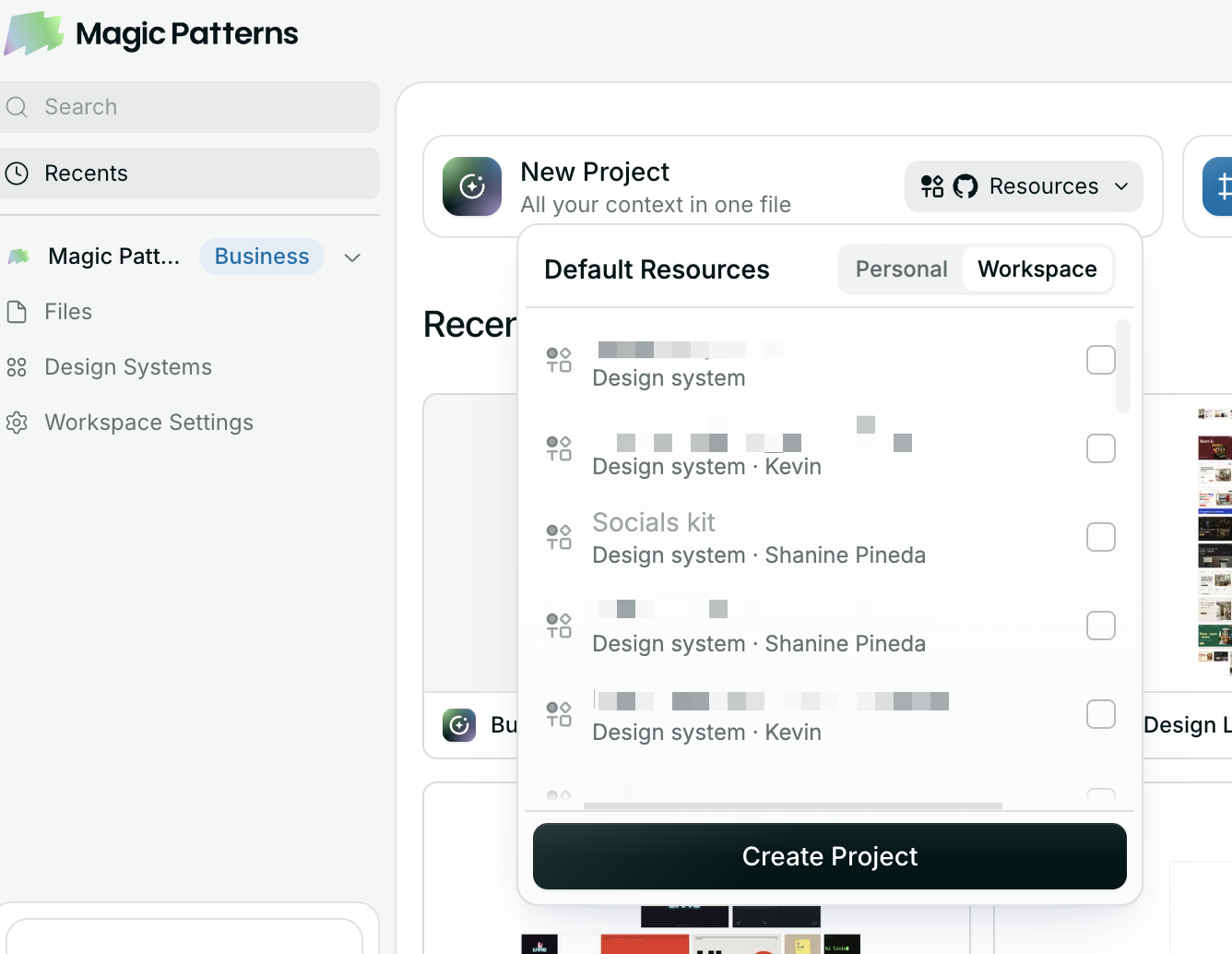
1
Open Default Resources.
Click Resources on the New Project card.
2
Choose Personal or Workspace.
Personal is your own default in this workspace. Workspace is the one everyone in the workspace starts from, and only workspace admins can change it.
3
Tick what new projects should start with.
Design systems, GitHub repos, skills, and connectors are all listed.
4
Save it.
Click Update Default, or Save as Personal Default the first time. New projects start with those resources from then on.
When your design system changes
A project builds from its own copy of a design system, fixed to the version it was on when you added it, so it doesn’t change under you while you work. When someone changes the shared design system, the project’s copy shows Update available, along with who changed it and when. Click Update to bring the change in. Magic Patterns re-checks the designs that use it and tells you how many it looked at. New commits to a linked GitHub repo don’t reach your design system on their own. Open the design system and click Re-sync to pull from its sources and create a new version. Projects that use it then show Update available. See Keep your design system up to date.What’s next
Import from code
Link a GitHub repo or upload a zip of your component library.
The canvas and files
Add canvases, prototypes, frames, documents, and images.
Connect your AI coding tool
Work on a project from Cursor, Claude Code, or Codex.